First steps: connect your world
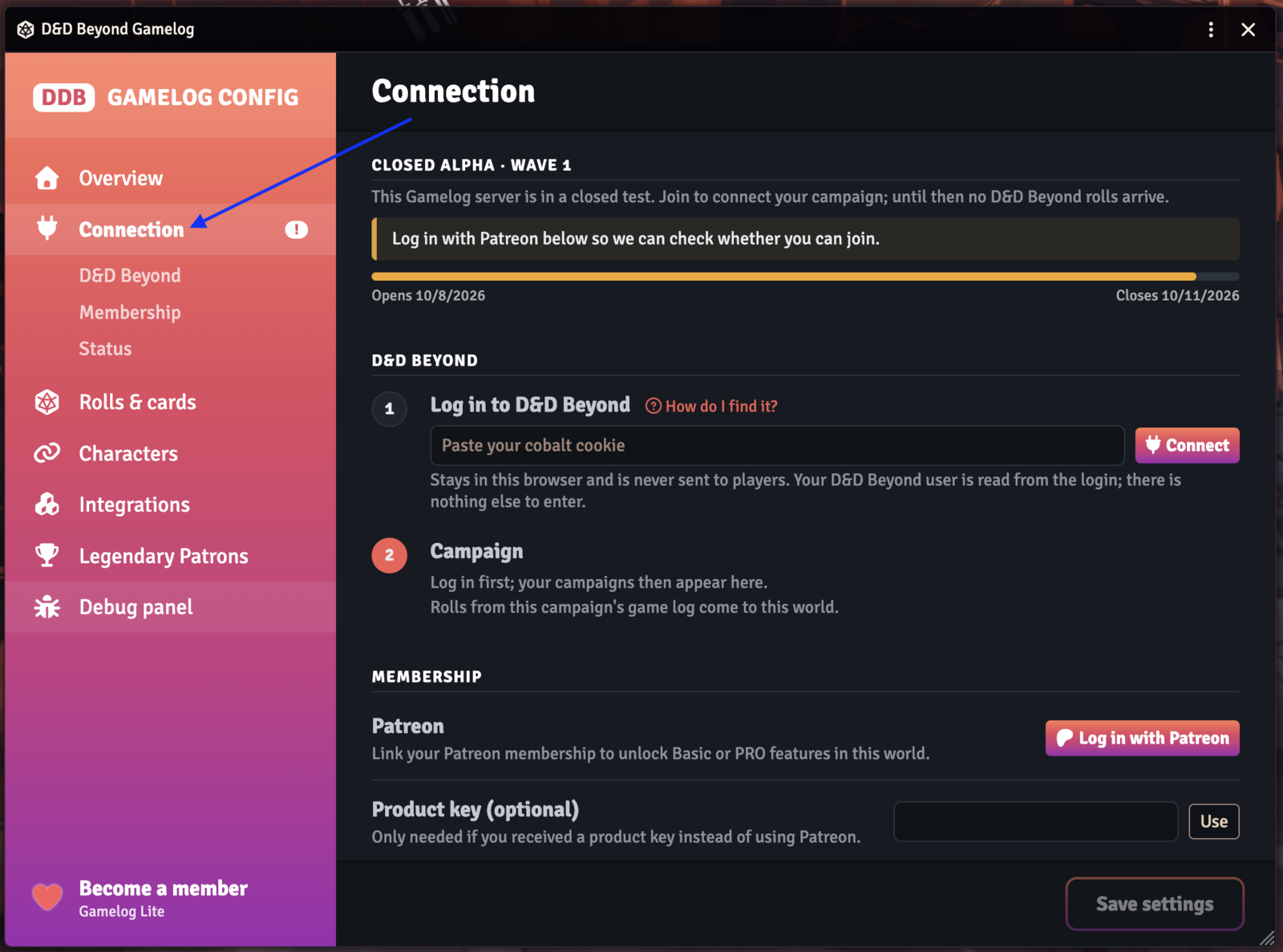
You do these steps once, as the GM, in the browser you normally use for Foundry. Open Game Settings → Configure Settings → DDB Gamelog → Open Gamelog Config and go to the Connection page.
Once the module is active, GMs also get a dragon button in the sidebar, above the Settings tab, that opens Gamelog Config directly. You can switch it off under Gamelog Config → General → Interface → Gamelog button in the sidebar. The setting is remembered per browser.
The welcome tour
The first time the module starts in a world, GMs get a Welcome to DDB Gamelog window. Players never see it. It has four steps:
- Welcome: what DDB Gamelog does.
- Quick start: the five steps on this page (log in, pick your campaign, link Patreon, link your characters, make a roll). Each step ticks itself off when it is done, and its button opens the right page of Gamelog Config. Steps that need the Gamelog server are marked Needs connection while this browser is not connected. If another GM’s browser relays for the world, the window says so.
- Membership: your plan and what each plan includes. Open the tour right on this step with Compare the plans on the Connection page.
- What’s new: the highlights of the newest release. Open the tour right on this step with the sparkle button on the module version card of the Debug panel.
The window opens on every start until you click Get started on the last step or tick Don’t show again. The answer is stored in the world, so every GM of the world sees the same. Reopen the tour any time with Open the tour in the Welcome tour section of the Overview page of Gamelog Config.
After an update, the window opens once on the What’s new step with what changed since the version you last ran, even if you ticked Don’t show again.
1. Log in to D&D Beyond with your cobalt cookie
The cobalt cookie is a small piece of text that D&D Beyond gives your browser when you log in. It is called CobaltSession. Gamelog uses it to read your game log on your behalf.
To copy it:
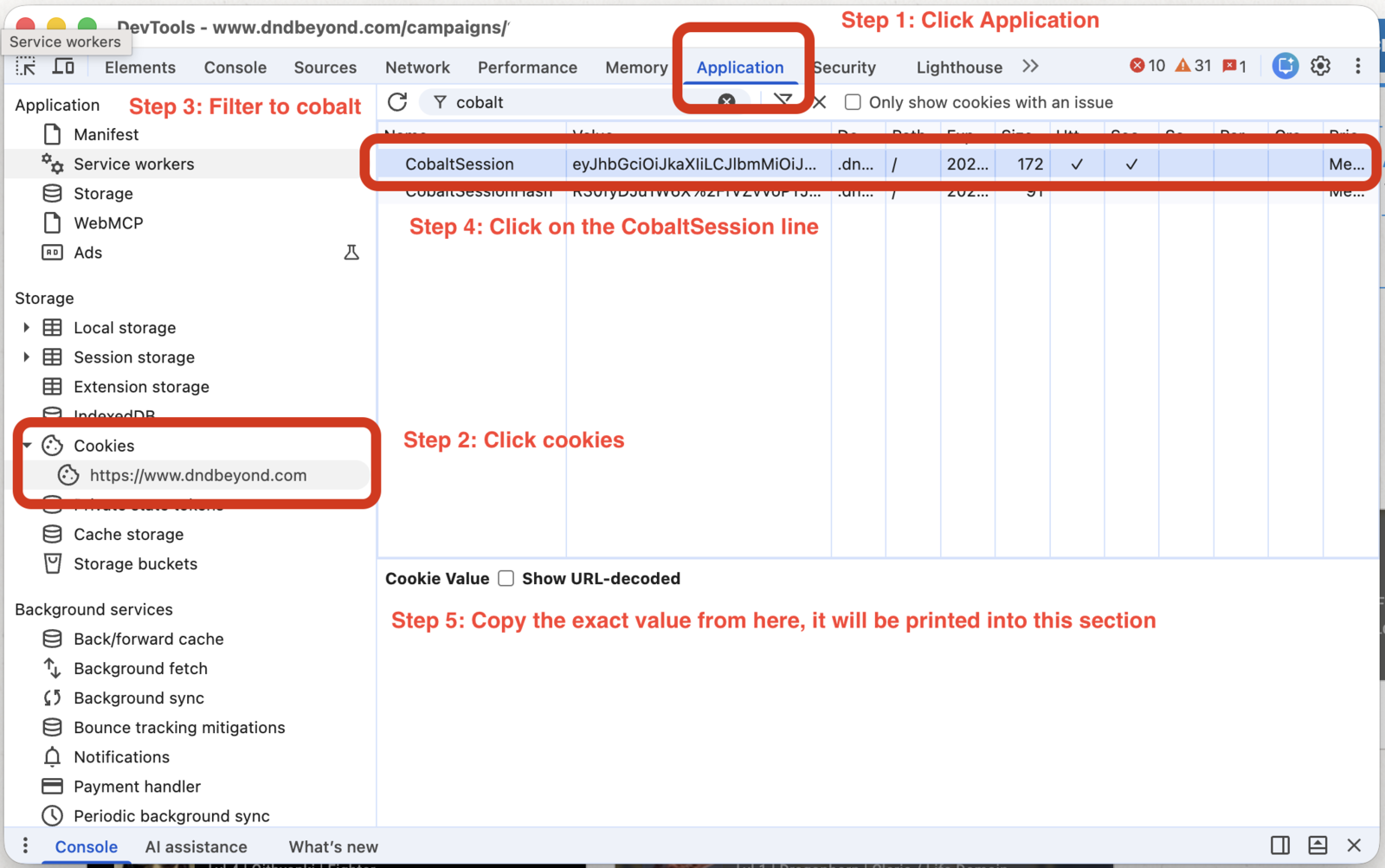
- Log in on dndbeyond.com.
- Open your browser’s developer tools (F12).
- In Chrome, go to Application. In Firefox, go to Storage.
- Open Cookies, then
https://www.dndbeyond.com. - Copy the value of
CobaltSession. - In Gamelog Config → Connection, paste it into the cobalt cookie field and click Connect.
The cookie is stored only in this GM browser. It is never sent to your players and never shared. Treat it like a password: do not post it in Discord or in a screenshot.
Do not log out of D&D Beyond. Logging out ends that session, and D&D Beyond hands out a new CobaltSession the next time you log in. The value Gamelog stored is dead from that moment, so rolls stop arriving until you copy the new one and connect again. Closing the browser or the tab is fine; only logging out breaks it.
Only one GM browser relays D&D Beyond rolls at a time. The browser that relays is the one that holds your D&D Beyond credentials. If you have a second GM, only one of you should connect. The Overview page tells you whether this browser or another GM’s browser relays. See Only one GM relays.
2. Pick your campaign
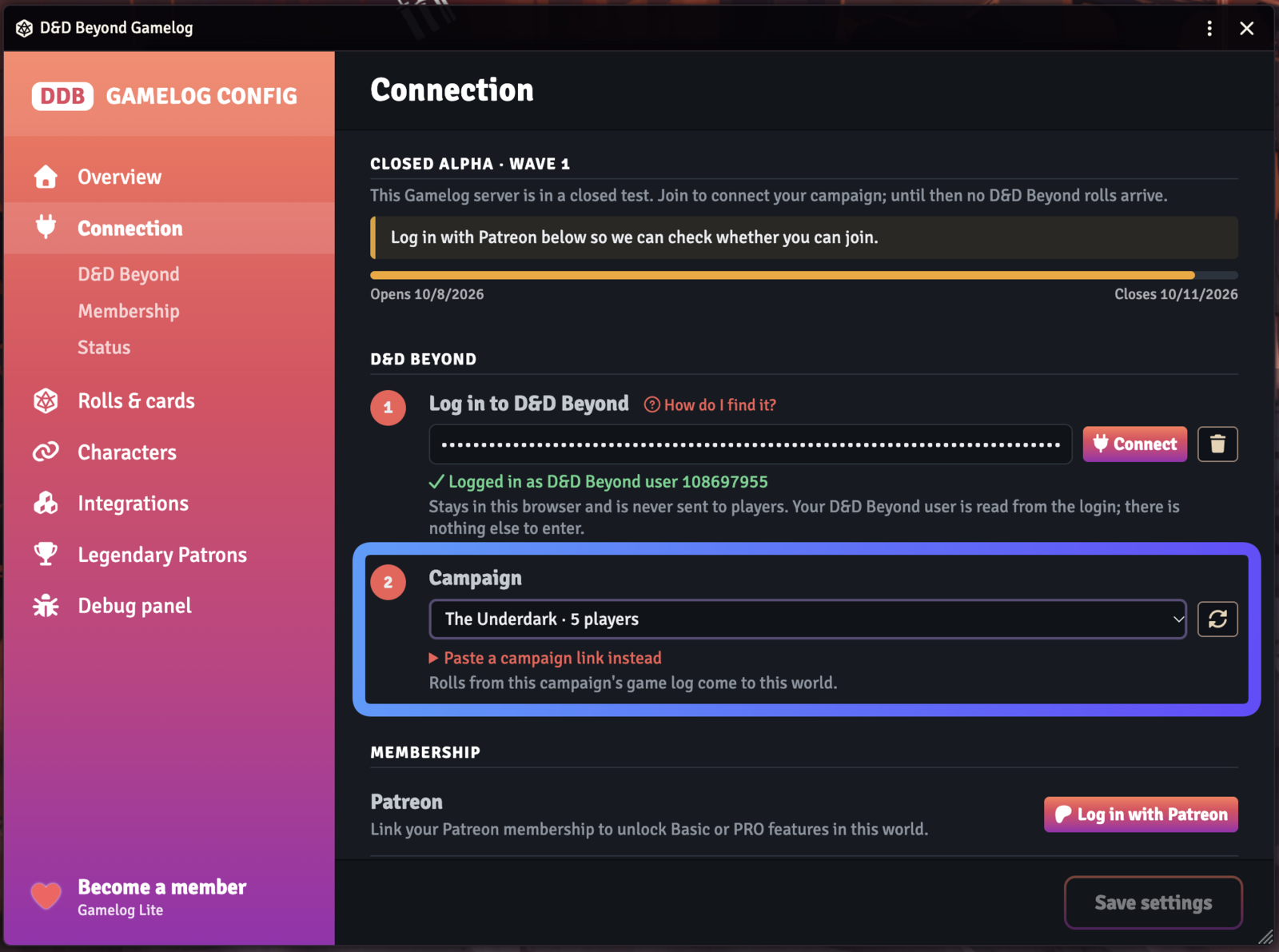
After you log in, your D&D Beyond campaigns appear on the Connection page. Pick the campaign whose game log should feed this world. You must be the DM of that campaign.
If your campaign is not listed, use Reload the list, or paste the campaign link instead.
A Foundry world belongs to the first D&D Beyond account that connects it. If you connect a world that another account connected first, see Troubleshooting.
3. Link Patreon
Linking Patreon unlocks Basic, PRO or MAX features in this world. You can skip this step: the Free tier works without it, see Tiers.
On the Connection page, use the membership section to log in with Patreon. When it works, the page shows that the world is linked to your membership and its tier. Changes on Patreon apply within seconds. To see what each plan includes, and where yours stands, use Compare the plans right below.
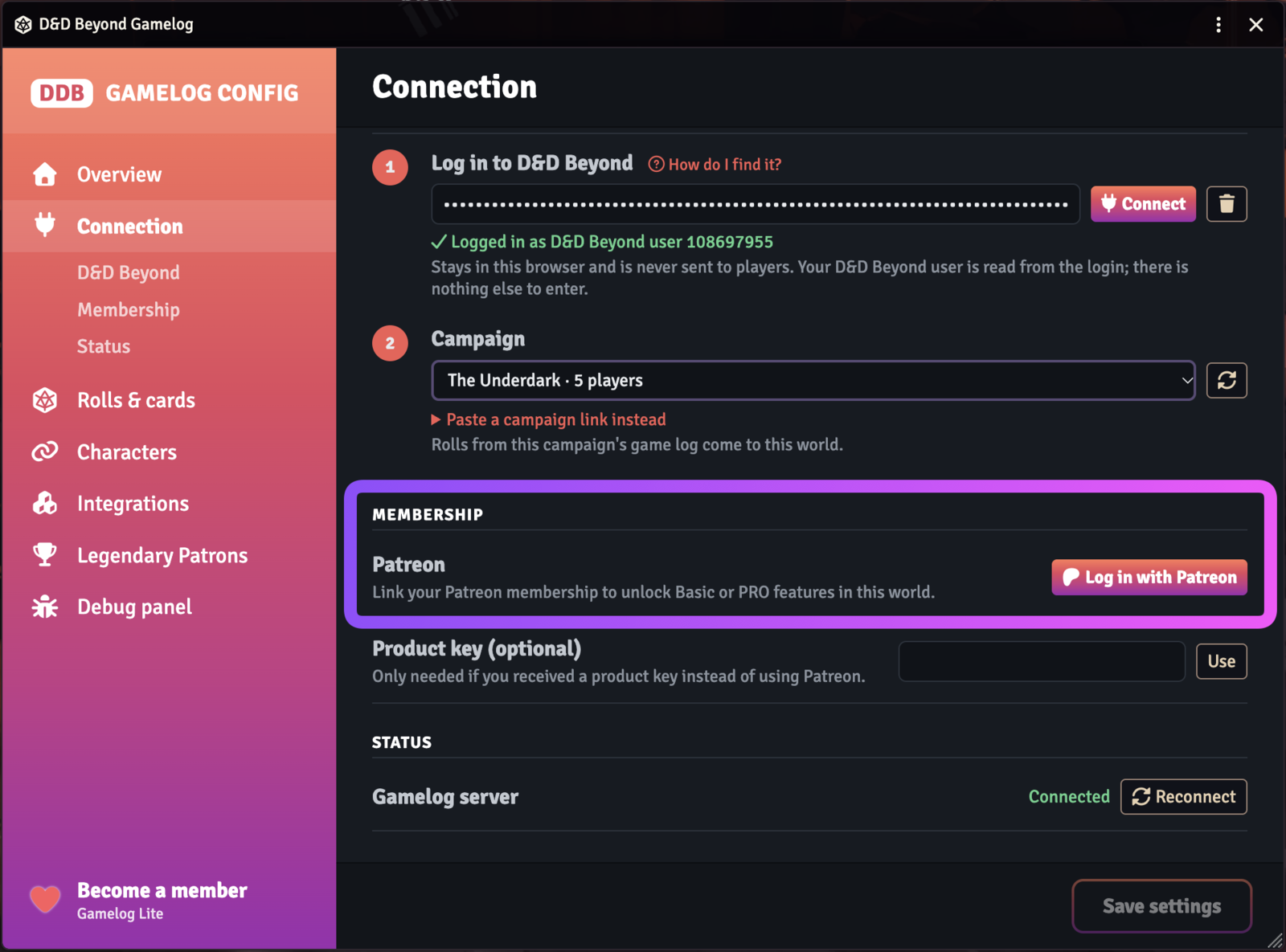
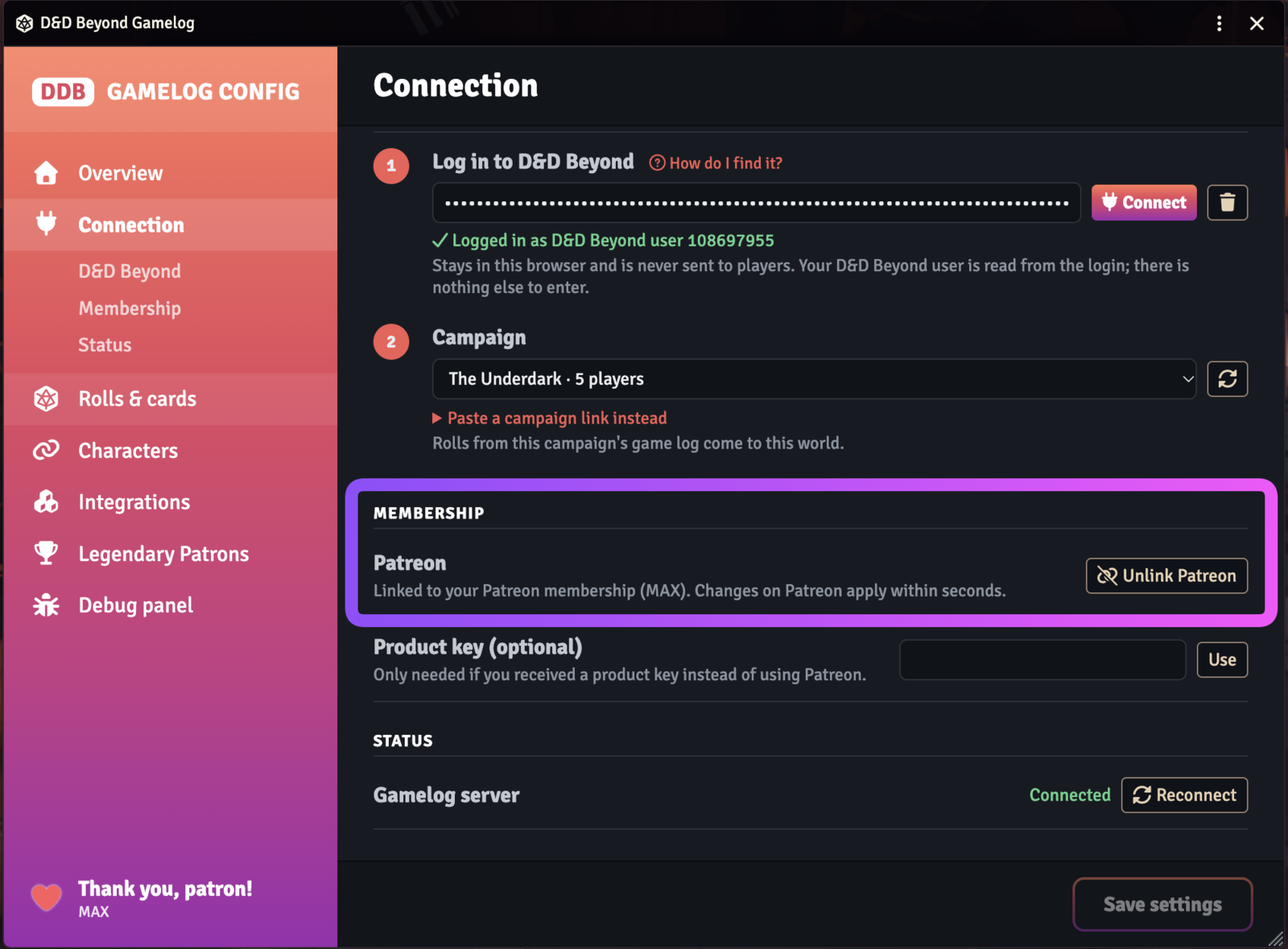
No login window? Some browsers block it, and the Foundry desktop app never opens one. The page then shows an Open the Patreon login link with a copy button – use either, in any browser. The login finishes on the Gamelog server, so your world is linked the moment you are done, even if you logged in on another device. See Troubleshooting.
Coming from version 2? Your world may ask you to link Patreon again, even though it was linked before. That is expected and takes one click. Your membership and the tiers you held in the past belong to your Patreon account, not to the world, so nothing is lost.
4. Link your characters
Your players’ characters should be linked to their D&D Beyond characters, so rolls land on the right actor. See Character linking.
Check that it works
Roll something on D&D Beyond in the campaign you picked. A card should appear in Foundry chat. If not, see Troubleshooting.
Notifications
The module shows its messages, such as “Membership updated” or a connection error, in a Gamelog notification bar of its own. Under Gamelog Config → General → Interface you choose:
- Gamelog notification bar: switch it off to get the messages as Foundry’s notifications instead.
- Notification position: top or bottom, left, centered (the default) or right.
- How long a notification stays: 4, 8 (the default) or 15 seconds, or until you close it. Important messages, such as a connection error, always stay until you close them.
These settings are remembered per browser.