Card look
Tier: Basic.
You can change how roll cards look in Foundry chat.
| What | Tier |
|---|---|
| Card themes, player colours | Basic |
| D&D Beyond character avatars on cards | Basic |
Card themes
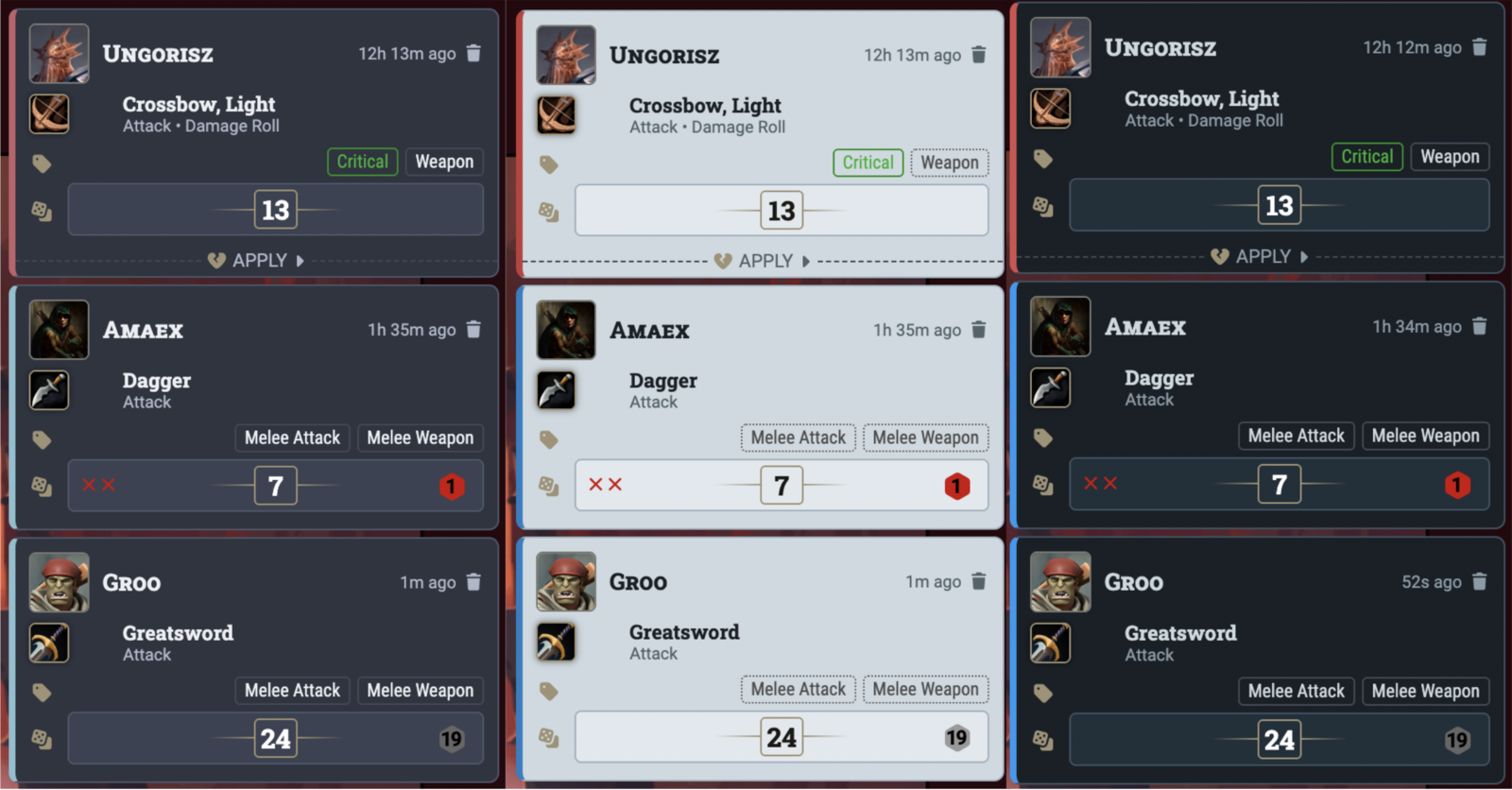
Pick a theme for the cards. The setting is in Gamelog Config → Rolls & cards, in the Card look section. A theme colours the cards and gives each roll type its own accent colour. It applies to everyone’s chat, not only yours.
| Theme | |
|---|---|
| Foundry default | Foundry’s own chat card look |
| D&D Beyond light | D&D Beyond’s game log colours, light |
| D&D Beyond dark | D&D Beyond’s game log colours, dark |
| Vampire’s Crypt | dark |
| Frostfell | dark |
| Hearthfire Tavern | dark |
| Sage’s Parchment | light |
| Fey Grove | light |
Player colours
Cards can show a border in the colour of the player. The Overview page shows whether player colour borders are on or off.
Character avatars
The Avatar setting on the same page decides which picture a card shows: the D&D Beyond avatar (Basic) or the Foundry actor or token art. A character that has no linked Foundry actor always shows its D&D Beyond avatar when it has one.
Without Basic
Without a Basic membership the cards still work: they use Foundry’s standard chat card look and Foundry’s actor art, and the theme and avatar settings stay locked. See Tiers.